
Create the perfect SharePoint Navigation
SharePoint, a powerful collaboration platform by Microsoft, offers numerous features to enhance team productivity and streamline information management.
One critical aspect of SharePoint is navigation, as it determines how users interact with the platform and find relevant content efficiently.
In this blog article, we will explore the key elements and best practices to create the perfect SharePoint navigation. By implementing these strategies, you can optimize user experience, improve content discoverability, and boost overall productivity within your organization.
Understanding SharePoint Navigation
Before diving into the details, it's essential to understand the various navigation elements in SharePoint. The platform provides two primary types of navigation: global navigation and local navigation.
Global navigation: This refers to the top-level navigation that remains consistent across all site collections, allowing users to navigate between different sites, libraries, and lists. Global navigation typically includes the SharePoint logo, site title, and navigation links.
Local navigation: Also known as contextual navigation, local navigation provides links relevant to a specific site or page. It allows users to explore content within a site or sub-site and includes navigation elements such as quick launch, site hierarchy, and breadcrumbs.
Keep SharePoint Navigation Simple and Consistent
Simplicity and consistency are key principles for effective SharePoint navigation. Consider the following best practices:
a. Limit the number of top-level navigation links: Having too many top-level navigation links can overwhelm users. Aim for a concise set of links that represent the most important and frequently accessed areas of your SharePoint environment.
b. Use clear and descriptive labels: Ensure that your navigation labels accurately reflect the content or functionality they represent. Avoid jargon or technical terms that may confuse users. Use familiar and intuitive labels to enhance usability.
c. Maintain consistent navigation across sites: Consistency in navigation across different sites within your SharePoint environment is crucial. Users should feel familiar with the navigation structure, regardless of the site they are visiting. This consistency facilitates easy navigation and reduces the learning curve.
d. Avoid deep nesting: Deeply nested navigation structures can be confusing and time-consuming to navigate. Limit the number of hierarchical levels in your navigation to maintain simplicity and ease of use.
e. Implement responsive design: With the increasing use of mobile devices, it's crucial to ensure that your SharePoint navigation is responsive. Responsive design allows users to access and navigate your SharePoint sites seamlessly across various devices, enhancing their experience.
Utilize SharePoint Navigation Features
SharePoint offers several built-in features to enhance navigation. Let's explore some of the key features and how to make the most of them:
a. Quick Launch: The Quick Launch navigation provides a vertical menu on the left side of the page, offering easy access to site contents and other important links. Customize the Quick Launch to include relevant links, and consider grouping related content together for better organization.
b. Megamenu: SharePoint Online provides a Megamenu option, allowing you to create a visually appealing and structured navigation experience. Megamenus can display navigation links, sub-links, images, and descriptions, enabling users to navigate more efficiently.
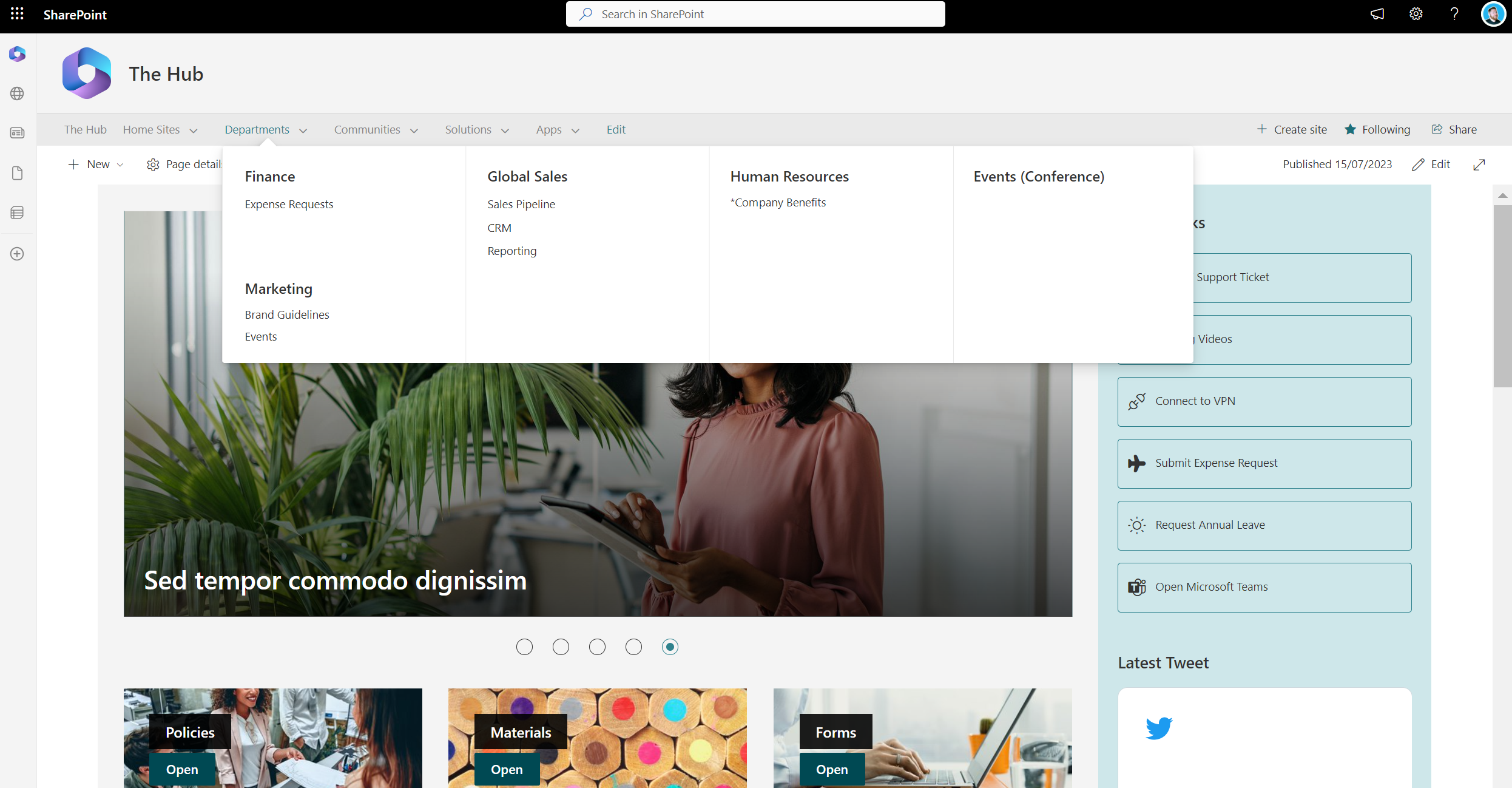
c. Hub Sites: If you have multiple related SharePoint sites, consider using Hub Sites. Hub Sites allow you to aggregate content and provide a unified navigation experience across associated sites. This feature enables users to move seamlessly between sites within a hub, enhancing collaboration and content discovery.
d. Audience Targeting: SharePoint allows you to target specific navigation links or items to specific user groups or audiences. This feature ensures that users only see navigation elements that are relevant to them, streamlining their experience and reducing clutter.
e. Metadata Navigation: SharePoint's Metadata Navigation feature enables users to navigate content based on specific metadata attributes. By leveraging metadata, you can create custom navigation hierarchies, allowing users to find content based on their specific requirements.
Test and Iterate
Creating the perfect SharePoint navigation requires testing and iteration. Regularly seek feedback from users and stakeholders to identify pain points and areas for improvement.
Conduct usability tests to observe how users interact with your navigation and make adjustments accordingly. SharePoint's analytics and usage data can provide valuable insights into user behavior and help you refine your navigation structure over time.
Conclusion
A well-designed SharePoint navigation system can significantly enhance user experience and productivity. By implementing the best practices outlined in this article and utilizing SharePoint's built-in navigation features, you can create a seamless and intuitive navigation experience for your users.
Remember to keep it simple, consistent, and responsive. Regularly evaluate and refine your navigation based on user feedback and analytics data. With an optimized SharePoint navigation, you can empower your team to find and collaborate on content more efficiently, ultimately driving greater productivity and success within your organization.