
Power Automate SharePoint Lists
In the modern world of business, efficiency and productivity are essential for success. In the realm of SharePoint list management, manual item updates can be time-consuming and tedious, holding back teams from achieving their full potential.
However, there is a solution – Microsoft's powerful automation tool, Power Automate. In this in-depth tutorial, we will guide you through the process of using Power Automate to update SharePoint list items simultaneously, saving you time and effort while enhancing your workflow.
Watch the video above for full demonstration of automating SharePoint with Power Automate.
Introduction to Power Automate
Before delving into the nitty-gritty of SharePoint list updates, let's take a moment to understand the foundation of our solution – Power Automate.
Formerly known as Microsoft Flow, Power Automate is a versatile and user-friendly automation tool that allows users to create workflows to automate various tasks and processes across different applications and services.
From simple tasks to complex processes, Power Automate empowers users to streamline their work and maximize productivity.
Understanding the Challenge Power Automate can solve
Manually updating SharePoint list items can be a real challenge, especially when dealing with large volumes of data or frequent updates.
The time and effort spent on this repetitive task can be better utilized in more strategic activities. With Power Automate, you can overcome these limitations and revolutionize your list management.
Setting up the Power Automate Flow
In this tutorial, we will walk you through the step-by-step process of creating a flow in Power Automate to update multiple SharePoint list items simultaneously.
We will demonstrate how to set up the flow and ensure it aligns perfectly with your specific requirements.
Configuring Triggers and Actions
To automate the updating process, you need to understand the essential components of your flow – triggers and actions. Triggers are the events that initiate the flow, while actions are the steps that occur as a result of the trigger.
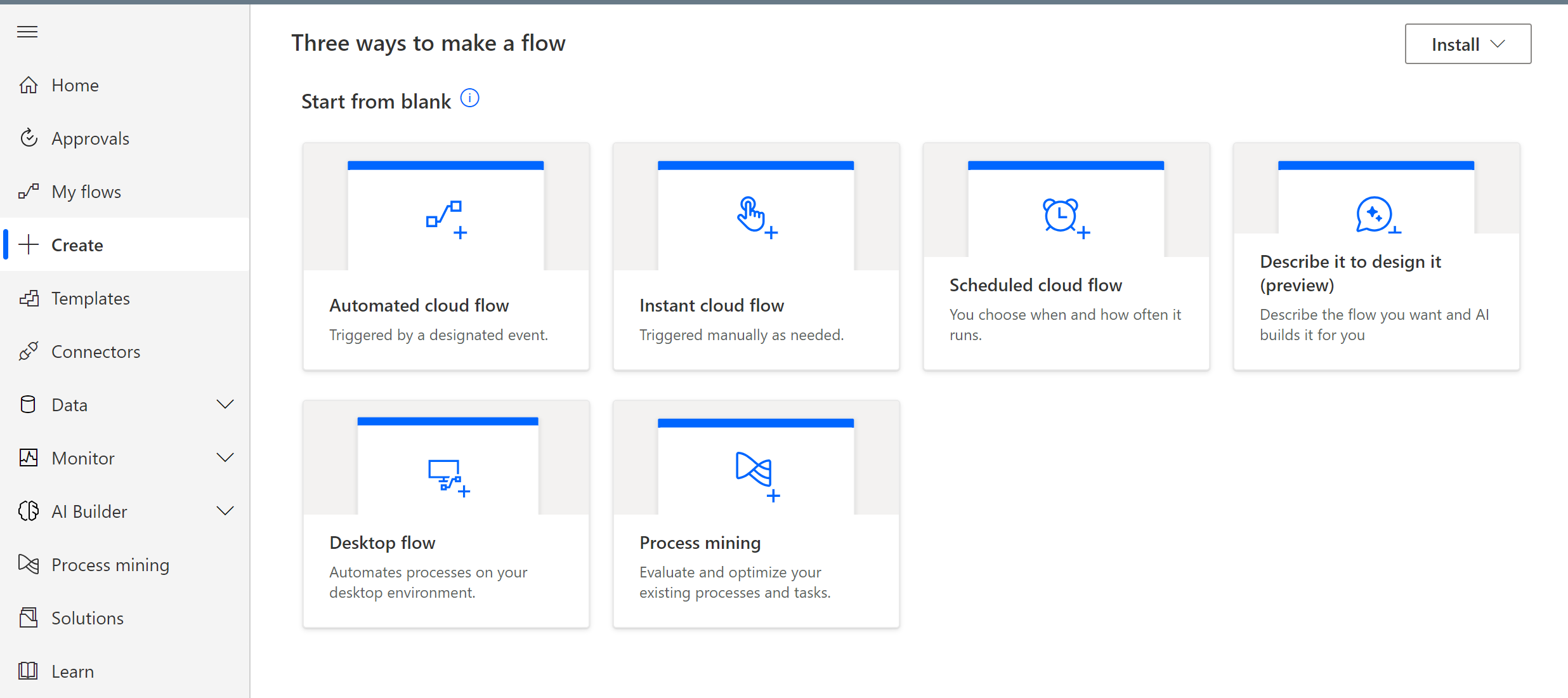
We'll explore how to configure the appropriate triggers and actions to ensure smooth and efficient updates.
Mapping Fields and Values from SharePoint in Power Automate
Mapping fields and specifying values are crucial steps in the process of updating SharePoint list items.
You'll learn how to map fields accurately and define the values you want to apply across multiple list items. This ensures that the updates are consistent and accurate throughout the process.
Testing and Execution in Power Automate
Testing is a critical part of any automation process. We will guide you through the testing and validation phase to ensure your flow performs as expected.
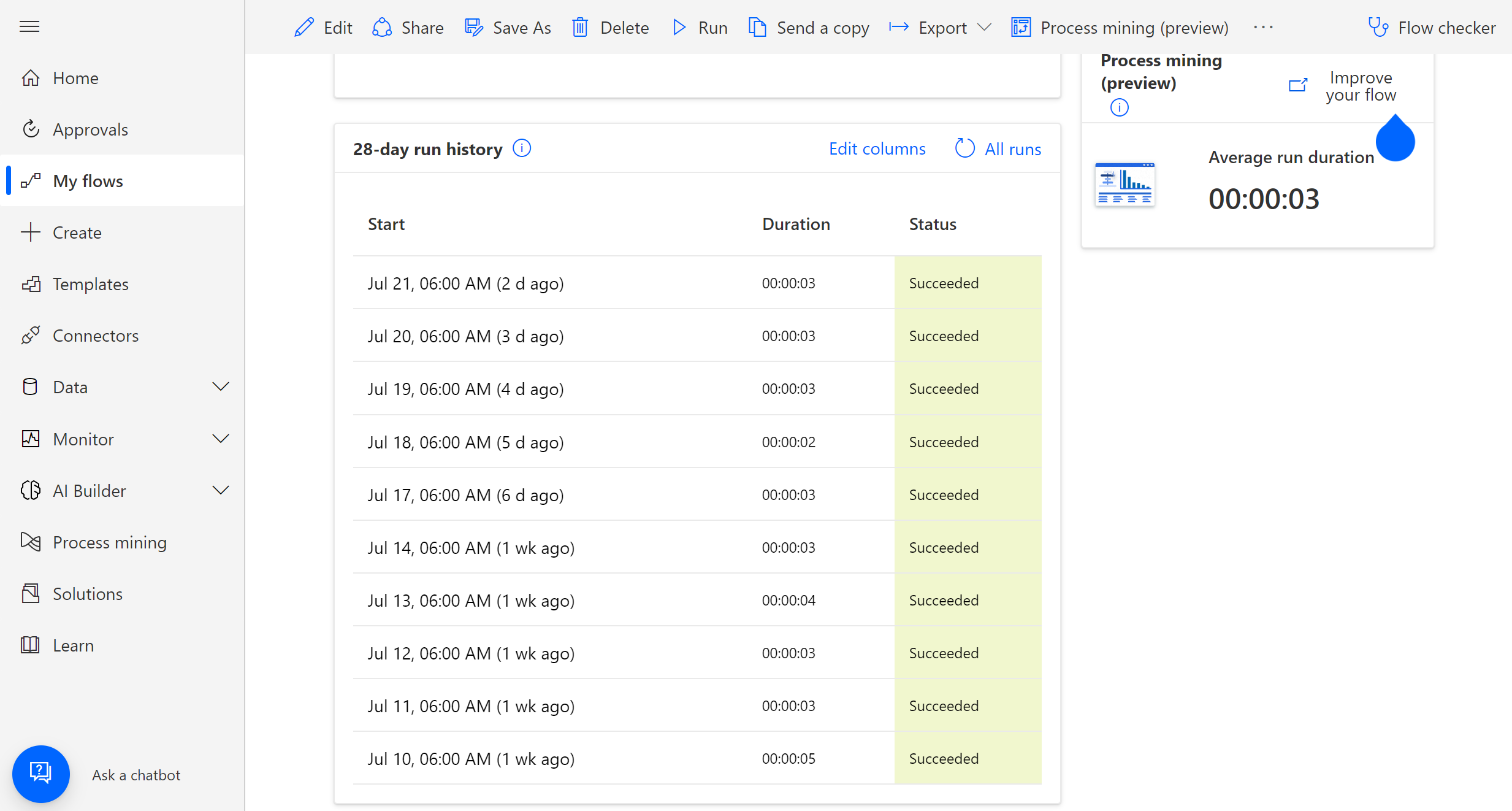
By following our guidance, you can identify and rectify any potential issues before deploying the automation to your live environment.
Best Practices and Tips for Power Automate
To maximize the benefits of Power Automate for SharePoint list item updates, we will share some best practices and tips.
These insights will help you optimize your workflow, enhance efficiency, and troubleshoot common challenges that may arise during the automation process.
Conclusion
By the end of this tutorial, you will have gained a solid understanding of how to leverage Power Automate to streamline your SharePoint list management.
The power of automation will be at your fingertips, allowing you to update multiple list items effortlessly. Say goodbye to hours of manual labor and hello to a more efficient, productive, and empowered way of managing your SharePoint lists.
If you're ready to take your SharePoint list management to the next level, it's time to embrace the power of automation.
Watch our in-depth video tutorial, unlock the potential of Power Automate, and revolutionize the way you update SharePoint list items today. Don't let manual updates hold you back any longer – automate and thrive!
-
Power Automate, formerly known as Microsoft Flow, is a robust and user-friendly automation platform offered by Microsoft.
It enables users to create workflows that automate repetitive tasks and processes across various applications and services.
With an intuitive visual interface, Power Automate allows users to build automation without the need for extensive coding knowledge, making it accessible to both technical and non-technical users.
-
Power Automate offers numerous benefits that make it a valuable tool for organizations.
By using Power Automate, businesses can significantly improve efficiency and productivity by automating manual and time-consuming tasks.
It eliminates the need for repetitive actions, reduces human errors, and ensures consistency in processes. Moreover, Power Automate integrates seamlessly with popular Microsoft tools and third-party applications, enhancing collaboration and data flow between different systems.
-
Power Automate provides a wide array of capabilities to automate tasks and processes across different platforms.
Some of the common actions include sending emails and notifications, creating and updating records in databases, retrieving and processing data from various sources, scheduling recurring tasks, and posting updates on social media platforms.
With hundreds of pre-built connectors and templates, Power Automate supports automation for a diverse range of scenarios.
-
In SharePoint, Power Automate can perform various tasks to streamline list management and improve collaboration.
It can automate the creation and updating of SharePoint list items, send notifications based on list changes, synchronize data between SharePoint and other systems, and facilitate document approval processes.
Power Automate's integration with SharePoint unlocks powerful automation possibilities, making it easier to manage content, enhance data integrity, and simplify workflows.
-
Integrating Power Automate into SharePoint is a straightforward process.
First, navigate to the Power Automate platform and select "Create" to start building a new flow. Choose the SharePoint trigger that best suits your requirements, such as "When an item is created" or "When an item is modified."
Next, configure the necessary actions that should occur when the trigger event happens.
These actions can include updating list items, sending notifications, or performing other tasks across SharePoint and other connected applications.
-
Yes, Power Automate can set approvals in SharePoint. Using the built-in "Start an approval" action in Power Automate, you can automate approval processes for SharePoint list items or documents.
For instance, when a new item is added to a SharePoint list, you can configure Power Automate to trigger an approval request to specific users or groups.
Approvers can then review the item and either approve or reject it directly from their email or through a SharePoint interface, based on the defined approval criteria.
In summary, Power Automate is a versatile automation platform that empowers users to streamline processes, improve productivity, and enhance collaboration across various applications, including SharePoint.
Its ease of use and integration capabilities make it an invaluable tool for organizations looking to automate repetitive tasks and optimize their workflows.
By harnessing the power of Power Automate, businesses can unlock new levels of efficiency and focus on more strategic initiatives.
-
Power Automate is used to automate various tasks and processes across different applications and services.
It helps users streamline workflows, eliminate manual interventions, and save time by automating repetitive and time-consuming tasks.
With Power Automate, users can create custom workflows to trigger actions based on specific events, such as sending notifications, updating records in databases, synchronizing data between systems, and much more.
It is a versatile tool that empowers businesses to enhance productivity and efficiency in their day-to-day operations.