
Top 10 Tips to Design a Powerful SharePoint Intranet
In today's fast-paced business environment, a well-designed SharePoint intranet is vital for effective collaboration, streamlined communication, and efficient information management. In this comprehensive guide, we will explore the top 10 tips to help you create a powerful and user-friendly SharePoint intranet that meets the unique needs of your organization.
1. SharePoint Designs with Vertical Sections
Visual appeal and organization are key factors in enhancing user experience within a SharePoint intranet. One effective technique is to utilize vertical sections to break out and emphasize different content areas. By incorporating vertical sections with carefully chosen colors, you can create a visually appealing layout that guides users' attention and improves content discoverability.
Implementing vertical sections in your SharePoint intranet is easy with the platform's modern page-building capabilities. Assigning specific colors to each section creates a cohesive and aesthetically pleasing design. For example, you might use a blue section for company news, a green section for department updates, and a yellow section for employee resources. This approach enhances not only the visual appeal but also the overall user experience within the SharePoint intranet.
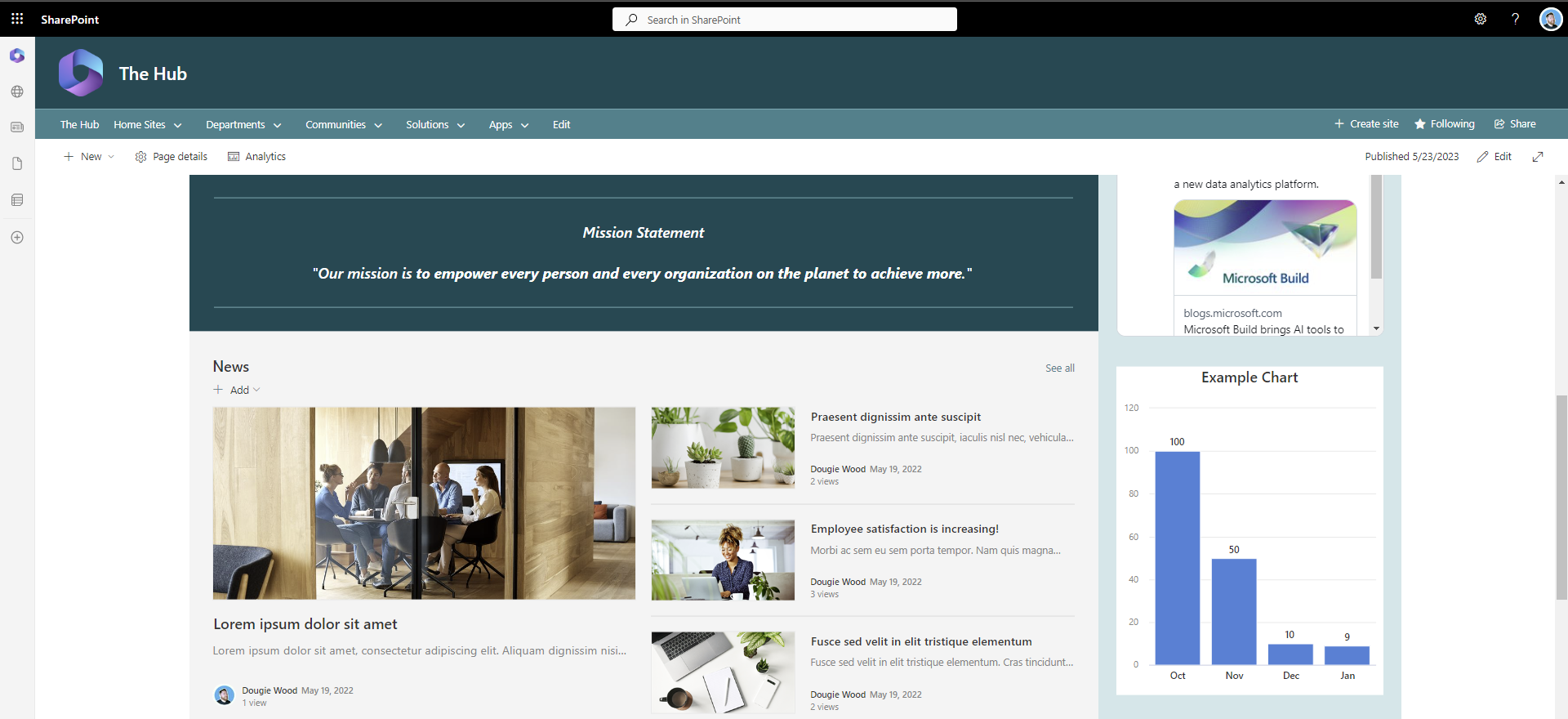
SharePoint Intranet design displaying a mission statement, news feed and example charts.
2. Embed Stream Videos into SharePoint
In the era of multimedia communication, video content has become increasingly popular for sharing information, training, and corporate announcements. SharePoint enables you to embed Stream videos directly into your intranet, providing a seamless and engaging experience for employees.
Consider leveraging the power of video by recording newsletters, CEO updates, or important training sessions as videos. By embedding these videos within your SharePoint intranet, you can enhance engagement, promote better information retention, and create a more dynamic intranet environment. Employees can easily access and watch videos at their own pace, ensuring important messages are effectively delivered.
3. Embed YouTube Videos into SharePoint
YouTube is a treasure trove of valuable video content, ranging from tutorials and product demos to industry insights and motivational talks. Integrating YouTube videos into your SharePoint intranet can significantly enrich the content offering and provide employees with a wide range of resources.
By embedding relevant YouTube videos within SharePoint pages, you tap into the extensive library of content available on the platform. For example, you might include tutorial videos for using specific software, industry thought leadership talks, or motivational videos to inspire your employees. This approach enhances the educational and entertainment value of your SharePoint intranet, catering to different learning preferences and fostering a culture of continuous learning.
4. Call to Actions in SharePoint Intranets
An effective SharePoint intranet should provide clear and visible call-to-action elements to guide users to key areas and resources. Users should be able to easily navigate to important sections such as forms, policies, and self-service applications. Incorporating well-designed buttons, links, and navigation menus ensures a seamless user experience and streamlines workflows within the intranet.
Consider implementing prominent call-to-action elements strategically placed throughout your SharePoint intranet. These elements should be visually distinct and labeled clearly to avoid any confusion. Additionally, use appropriate iconography and tooltips to provide further guidance to users. By making it easy for employees to access the resources they need, you enhance productivity and improve the overall intranet experience.
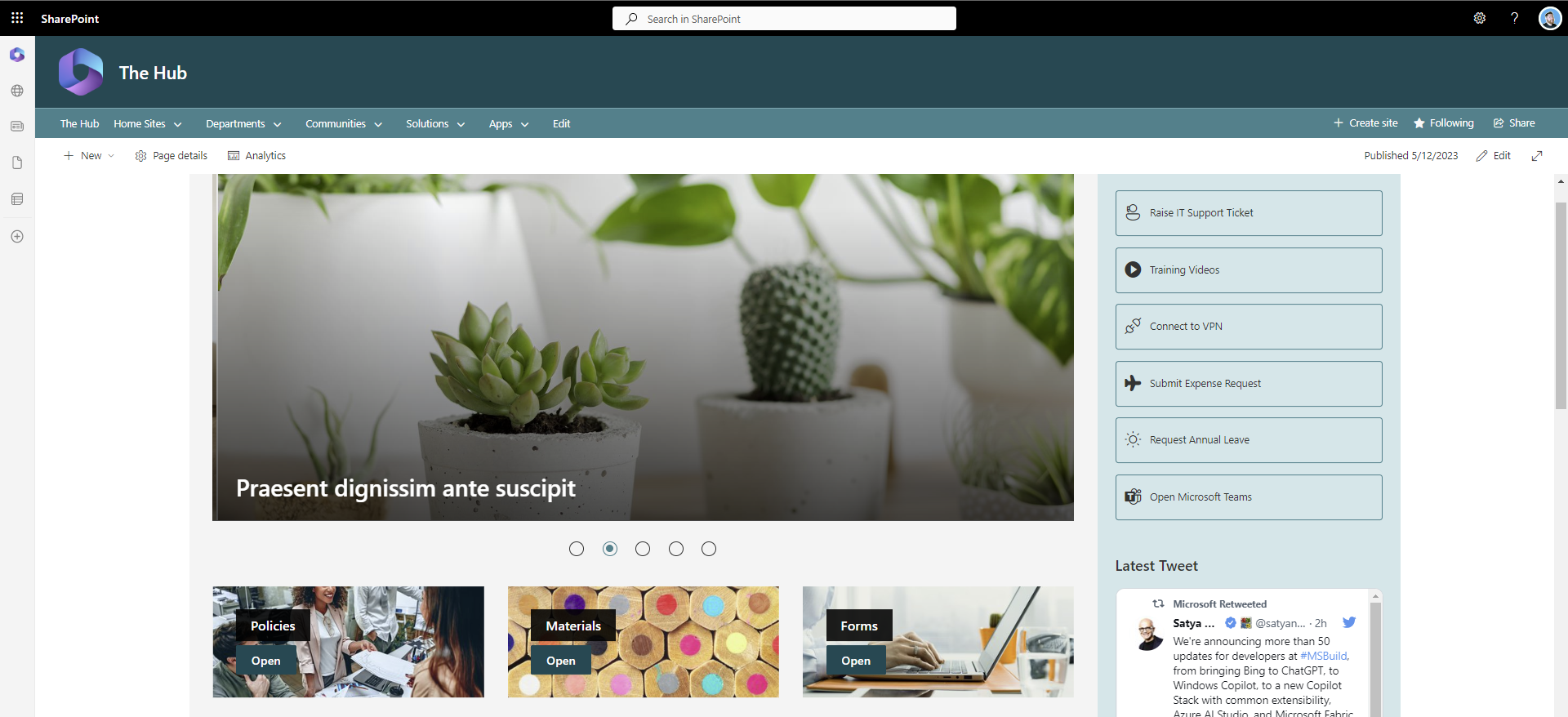
Three call to action SharePoint web parts for quick access to policies, materials and forms as part of the SharePoint design.
5. SharePoint News Rollups
In larger organizations, news and updates are often scattered across various department and project sites. SharePoint's news rollup feature allows you to aggregate news from different sites, presenting them in a centralized location within the intranet. This approach ensures that employees have easy access to the latest updates, fostering a sense of unity and eliminating information silos.
Implementing SharePoint news rollups involves creating a dedicated news hub or page that consolidates relevant news articles from different sources. By configuring the necessary settings, you can customize the rollup to include news from specific departments, teams and projects. This centralized news hub serves as a one-stop destination for employees to stay informed about company-wide developments.
When designing the news rollup, consider using filters and categorization options to enable users to customize their news feed based on their interests or roles. This personalized approach ensures that employees receive relevant updates and reduces information overload. Additionally, incorporate visually appealing and engaging elements such as featured images, brief summaries, and publication dates to entice users to click and explore further.
6. Intranet Newsletters
Traditional email newsletters often get lost in crowded inboxes or go unnoticed. SharePoint provides an opportunity to replace email newsletters with interactive and engaging intranet news. By creating news articles within SharePoint and sending out summary emails, you can draw employees into the intranet and encourage regular engagement with important updates.
To implement intranet newsletters effectively, establish a dedicated news section within your SharePoint intranet. This section can be divided into categories such as company news, department updates, or employee spotlights. Craft engaging and informative articles that cover a wide range of topics, ensuring that employees find value in the content provided.
Sending out summary emails is a crucial aspect of driving traffic to the intranet. These emails should contain highlights of recent news articles and provide direct links to the full articles within the SharePoint intranet. By enticing employees with intriguing snippets and making it easy for them to access the complete information, you increase engagement and encourage active participation in the intranet ecosystem.
7. SharePoint Event Web Parts
Organizing events within an organization can be a complex task that requires effective communication and coordination. SharePoint's Event Web Parts offer a comprehensive solution for promoting, managing, and tracking events within the intranet. From team meetings and training sessions to town halls and conferences, leveraging these web parts simplifies event organization, improves attendance, and keeps everyone informed about upcoming activities.
To utilize SharePoint Event Web Parts, create a dedicated events page or section within your intranet. This page can serve as a centralized hub for all events happening within the organization. Customize the web parts to include event details, such as the title, date, time, location, and brief descriptions. You can also integrate features like registration forms, RSVP options, and calendar synchronization to streamline the event management process.
Promote events within your SharePoint intranet by featuring upcoming events prominently on the homepage or using targeted notifications to notify relevant teams or departments. Additionally, encourage employees to provide feedback and engage in post-event discussions through comment sections or dedicated feedback forms. The Event Web Parts not only streamline event management but also create a sense of community and engagement within the intranet.
8. SharePoint Navigation Improvement
Smooth and intuitive navigation is critical for ensuring a positive user experience within your SharePoint intranet. Users should be able to find information quickly and easily without feeling overwhelmed or confused. SharePoint offers several features to enhance navigation, including drop-down menus and mega menus.
Drop-down menus provide a hierarchical structure for organizing intranet content. By categorizing information and providing clear labels, you can help users navigate through different sections of your intranet effortlessly. Consider grouping similar pages or resources under specific menu items to improve findability and streamline the user journey.
Mega menus take navigation a step further by allowing users to access a wide range of content directly from the main menu. Instead of navigating through multiple levels of submenus, employees can access important information with just a few clicks. Implementing mega menus can significantly reduce friction and ensure that users can reach their desired destinations quickly. However, be mindful of not overcrowding the menus with too many options, as it can lead to confusion and overwhelm. Strike a balance between providing comprehensive access and maintaining a clean, organized interface.
9. Design Templates and Site Templates
Design consistency is crucial for a professional and cohesive SharePoint intranet. SharePoint offers a variety of design templates and site templates that can serve as a starting point for your intranet design. These templates provide pre-defined layouts, color schemes, and functionality that align with specific organizational needs.
When selecting design templates, consider both the visual appeal and the functionality they offer. SharePoint provides out-of-the-box templates for various departments such as Human Resources, Marketing, and Sales. These templates often come with pre-configured lists, libraries, and web parts that are tailored to the specific requirements of each department.
Leveraging department SharePoint site templates ensures consistency across different sections of your intranet while addressing the unique needs of each department. For example, a Human Resources template might include sections for employee onboarding, benefits information, and performance management. By utilizing these templates, you save time and effort in designing from scratch while maintaining a professional and cohesive look and feel.
In addition to department-specific templates, SharePoint also allows you to create your own custom templates. If your organization has specific design requirements or branding guidelines, you can create a template that reflects your unique identity. This approach ensures that your SharePoint intranet aligns perfectly with your organizational brand and values.
10. SharePoint FAQs and Expanding Sections
Employee productivity can be significantly impacted when they need to repeatedly seek assistance from internal departments for common questions. SharePoint intranets can alleviate this burden by incorporating frequently asked questions (FAQs) sections and expanding sections within pages.
Creating a dedicated FAQ section within your intranet allows employees to quickly find answers to common queries. Organize the FAQs by topic or department to improve findability. By addressing commonly asked questions proactively, you empower employees to find answers independently and reduce the strain on internal support teams.
Expanding sections within pages are another useful feature of SharePoint intranets. These sections allow you to hide and reveal content to declutter the interface and improve readability. You can use expanding sections to provide in-depth information, tutorials, or step-by-step guides. This way, users can expand sections that interest them, accessing the content they need without overwhelming the page with excessive text.
Creating a centralized repository for commonly asked questions and expanding sections not only boosts productivity but also promotes a self-service culture within the organization. Employees feel empowered to find information independently, freeing up valuable time for both employees and support teams.
Discover how to create SharePoint FAQs by clicking here.
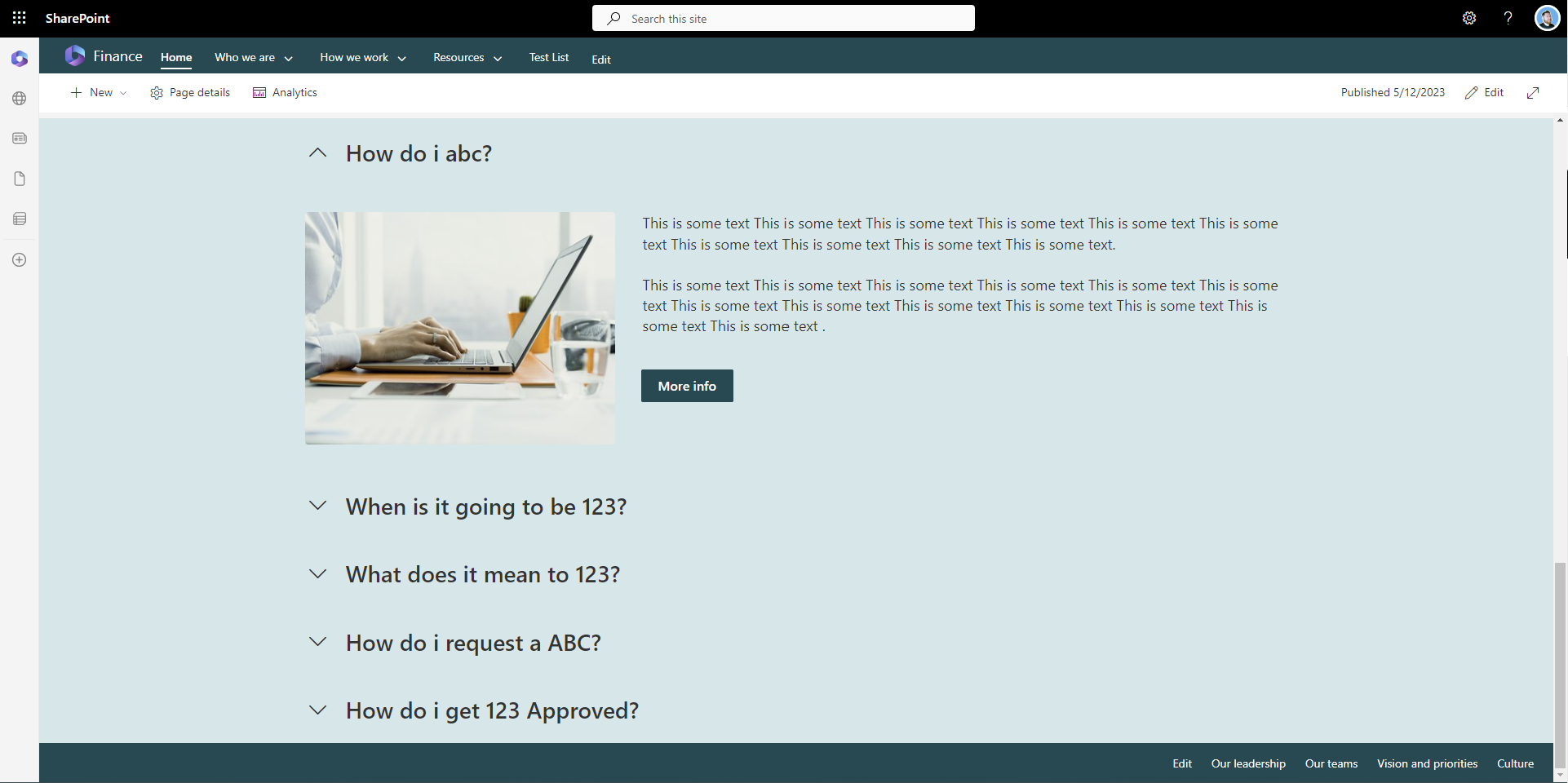
A demonstration of how an FAQ can be displayed in a SharePoint Intranet Design.
Conclusion
Designing a powerful SharePoint intranet requires careful consideration of user experience, content organization, and functionality. By incorporating the top 10 tips discussed in this article, you can create a user-friendly and engaging intranet that improves collaboration, communication, and information management within your organization.
Remember to leverage vertical sections to enhance visual appeal and content organization, embed Stream and YouTube videos to enrich multimedia communication, and implement clear call-to-action elements for easy navigation. Take advantage of SharePoint's news rollup and intranet newsletters to centralize and disseminate important updates effectively.
Furthermore, explore SharePoint's Event Web Parts for streamlined event management, improve navigation with drop-down menus and mega menus, and utilize design and site templates for consistency and efficiency. Lastly, incorporate FAQs and expanding sections to empower employees with self-service information.
With these top 10 tips as your guide, you can design a powerful SharePoint intranet that not only meets the needs of your organization but also enhances employee engagement and productivity. Embrace the potential of SharePoint to transform your intranet into a hub of collaboration, knowledge sharing, and organizational growth.